Thumbnail of product Manta 255T from brand Logicom
Logo of brand Logicom

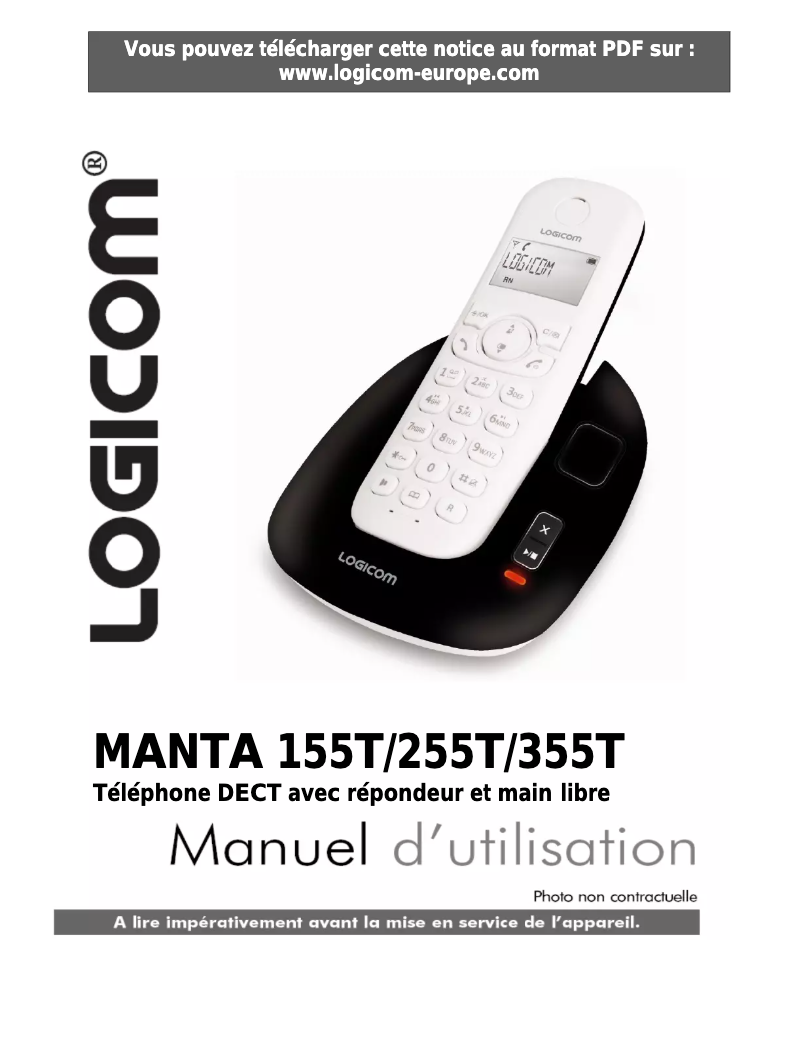
Phone Logicom Manta 255T

The Logicom Manta 255T is a phone from the Logicom brand, known for its innovation and quality in the field of electronic devices. This model is designed to deliver optimal performance, ensuring a smooth and enjoyable user experience.

With the Logicom Manta 255T, you benefit from a device that combines functionality and simplicity. It is ideal for users looking for a reliable phone for their daily communications. This model is equipped with features that meet essential needs while being easy to use.

A user manual is also provided, allowing for a quick and efficient handling of the device. In summary, the Logicom Manta 255T is a practical choice for those who want a functional and accessible phone.

Manual of product Manta 255T
7 10

Editorial note

The Logicom Manta 255T is a phone that stands out for its build quality and ergonomic design, providing a comfortable grip. The performance of the Manta 255T is smooth for everyday tasks, making the use enjoyable and intuitive thanks to its well-thought-out features. Additionally, the availability of a user manual allows for easy handling, even for less experienced users. However, some aspects may temper the appreciation of this device. The screen, while functional, could be of lower quality compared to other competing models, impacting the viewing experience. The internal memory is limited, which restricts the possibilities for installing applications and storing multimedia files. Furthermore, the battery life may prove insufficient for intensive use throughout the day. Finally, the operating system may not be up to date, which could pose security issues and restrict access to certain modern features. Overall, the Logicom Manta 255T offers good value for money, but it is important to consider its limitations before making a choice.

Score details

User experience

The user experience is enhanced by well-thought-out features, ensuring intuitive and user-friendly navigation.

Performance

Performance is smooth for everyday tasks, but may be limited for more demanding applications.

Battery life

Battery life may be insufficient for intensive use throughout the day.

Design

The design is neat and ergonomic, offering a comfortable and pleasant grip.

Value for money

The value for money is satisfactory, although the limited internal memory and lower quality screen may temper this appreciation.

Support

The availability of a user manual makes it easier to get started, even for less experienced users.

Features

Some features may be limited, and the operating system may not be up to date, affecting access to modern functions.


Advantages

Robust and durable construction

Smooth performance for everyday use

Intuitive and user-friendly navigation

Accessible user manual

Ergonomic and comfortable design

Disadvantages

Low-quality screen

Limited internal memory

Insufficient battery life

Outdated operating system

Low-quality camera

Technical Specifications Manta 255T

General Information

Frequently Asked Questions

How to activate the Logicom Manta 255T phone?
To activate your Logicom Manta 255T phone, follow these steps: 1. Locate the power button on the phone, usually found on the side or top of the device. 2. Press and hold the power button for a few seconds until the phone vibrates or the screen lights up. 3. Release the power button when the phone starts to boot up. 4. Wait while the phone completes the boot process, which may take a few moments. 5. Once the phone is on, the home screen or lock screen will appear. If you encounter difficulties or the phone does not turn on, check that the battery is charged and try again. Q: Why is my Logicom Manta 255T phone not charging? A: If your Logicom Manta 255T phone is not charging, here are some steps to troubleshoot the issue: 1. Check the battery installation: Ensure that the batteries (Type AAA Ni-MH/400mAh) are correctly inserted in the compartment, following the polarity indications. 2. Check the charging connection: Make sure the handset is properly positioned on the charging base; a sound signal should confirm the connection. 3. Charge uninterrupted: Allow the batteries to charge for at least 24 hours, as it is crucial to fully charge them the first time for optimal performance. 4. Replace the batteries if necessary: If they are old and no longer hold a charge, consider replacing them. 5. Avoid interference: Ensure that the charging base is away from other electrical devices to avoid interference. Follow these steps to attempt to resolve the charging issue. Q: How to perform the initial setup of the Logicom Manta 255T phone? A: To set up your Logicom Manta 255T phone for the first time, follow these steps: 1. Read the user manual: Before starting, it is advisable to read the manual provided with the device, available in PDF on the Logicom website. 2. Turn on the phone: Press the power button until the phone vibrates or the screen lights up, then release the button. 3. Choose your language: Use the navigation buttons to select the desired language. 4. Set the date and time: Follow the on-screen instructions to set the date and time. 5. Configure network settings: Connect the phone to your phone line with the provided cable or follow the instructions for a Wi-Fi connection. 6. Add your contacts: Enter your contacts' information or import them from your SIM card. 7. Customize settings: Explore the settings menu to adjust features according to your preferences. After these steps, your phone will be ready to use. If you encounter difficulties, refer to the user manual for further assistance. Q: Why is the screen of my Logicom Manta 255T phone not responding to touch? A: If the screen of your Logicom Manta 255T phone is not responding to touch, try these steps to troubleshoot the issue: 1. Check the screen sensitivity settings: Go to the menu, then to 'HS Settings' and 'HS Display' to adjust the screen sensitivity. 2. Clean the screen: Use a soft cloth to remove any dirt or fingerprints that may affect touch responsiveness. 3. Remove the screen protector or case: Take off any accessories that may interfere with touch functionality. 4. Restart the phone: Press and hold the power button to turn off the phone, wait a few seconds, then turn it back on. 5. Perform a factory reset: If the problem persists, consider resetting the phone, but make sure to back up your data first. If the screen still does not work, contact customer support for assistance. Q: How to turn on the Logicom Manta 255T phone? A: To turn on your Logicom Manta 255T phone, follow these steps: 1. Locate the power button, usually on the side or top. 2. Press and hold this button until the phone vibrates or the screen lights up. 3. Release the button when the phone starts to boot up. 4. Wait a few moments for the phone to complete its startup. 5. Once the device is on, the home screen or lock screen will appear. If the phone does not turn on, check that the battery is charged. Plug it into a power source and wait a few minutes before trying to turn it back on. Consult the troubleshooting manual if the problem persists. Q: Why is my Logicom Manta 255T phone not charging? A: If your Logicom Manta 255T phone is not charging, try these steps to troubleshoot the issue: 1. Check the battery installation: Ensure that the batteries (Type AAA Ni-MH/400mAh) are correctly inserted following the polarity. 2. Check the charging connection: Make sure the handset is properly placed on the charging base. 3. Charge uninterrupted: Allow the batteries to charge for at least 24 hours to ensure optimal performance. 4. Replace the batteries if necessary: If they no longer hold a charge, replace them. 5. Avoid interference: Ensure that the charging base is away from other electrical devices to avoid interference. If the problem persists, consult the troubleshooting manual or contact customer support. Q: How to set up the Logicom Manta 255T phone for the first time? A: To set up your Logicom Manta 255T phone for the first time, follow these steps: 1. Read the user manual: It is advisable to consult it before starting. You can download it in PDF format from the official Logicom website. 2. Turn on the phone: Press and hold the power button until the phone vibrates or the screen lights up, then release the button. 3. Choose your language: Use the navigation buttons to select your preferred language. 4. Set the date and time: Follow the on-screen instructions to adjust them. 5. Configure network settings: If you are using a wired connection, connect the phone to the phone line with the appropriate cable. 6. Add your contacts: Enter or import your contacts' information. 7. Customize settings: Explore the settings menu to adjust features according to your preferences. Once these steps are completed, your phone will be ready to use. If you encounter difficulties, refer to the user manual for further assistance. Q: Why is the screen of my Logicom Manta 255T phone not responding to touch? A: If the screen of your Logicom Manta 255T phone is not responding to touch, try these steps: 1. Check the sensitivity settings: Go to 'HS SETTINGS' and 'HS DISPLAY' to check the screen sensitivity. 2. Clean the screen: Use a soft cloth to remove any dirt. 3. Remove the screen protector or case: Take off any accessory that may affect touch responsiveness. 4. Restart the phone: Turn off the phone, wait a few seconds, then turn it back on. 5. Perform a factory reset: If the problem persists, consider this option, but back up your data first. If the screen still does not respond, contact customer support for assistance. Q: How to transfer files from my computer to the Logicom Manta 255T phone? A: To transfer files from your computer to the Logicom Manta 255T phone, follow these steps: 1. Connect the phone to your computer using the provided USB cable. Ensure the phone is turned on. 2. Activate file transfer mode: Swipe down from the top of the screen to access the notification panel, then tap on the USB notification and select 'File Transfer' or 'MTP' mode. Q: Is the manual for the Logicom Manta 255T available in French? A: Yes, the manual for the Logicom Manta 255T is available in French.
Pourquoi mon téléphone Logicom Manta 255T ne charge-t-il pas ?
Si votre téléphone Logicom Manta 255T ne se charge pas, voici quelques étapes à suivre pour résoudre le problème : 1. Vérifiez l'installation de la batterie : Assurez-vous que les piles (Type AAA Ni-MH/400mAh) sont correctement insérées dans le compartiment, en respectant les indications de polarité. 2. Vérifiez la connexion de charge : Assurez-vous que le combiné est bien positionné sur la base de chargement ; un signal sonore devrait confirmer la connexion. 3. Chargez sans interruption : Laissez les piles se charger pendant au moins 24 heures, car il est crucial de les charger complètement la première fois pour une performance optimale. 4. Remplacez les piles si nécessaire : Si elles sont anciennes et ne retiennent plus la charge, envisagez de les remplacer. 5. Évitez les interférences : Assurez-vous que la base de chargement est éloignée d'autres appareils électriques pour éviter les interférences. Suivez ces étapes pour tenter de résoudre le problème de charge.
Comment procéder à la configuration initiale du téléphone Logicom Manta 255T ?
Pour configurer votre téléphone Logicom Manta 255T pour la première fois, suivez ces étapes : 1. Lisez le manuel de l'utilisateur : Avant de commencer, il est conseillé de lire le manuel fourni avec l'appareil, disponible en PDF sur le site de Logicom. 2. Allumez le téléphone : Appuyez sur le bouton d'alimentation jusqu'à ce que le téléphone vibre ou que l'écran s'allume, puis relâchez le bouton. 3. Choisissez votre langue : Utilisez les boutons de navigation pour sélectionner la langue souhaitée. 4. Réglez la date et l'heure : Suivez les instructions à l'écran pour définir la date et l'heure. 5. Configurez les paramètres réseau : Connectez le téléphone à votre ligne téléphonique avec le câble fourni ou suivez les instructions pour une connexion Wi-Fi. 6. Ajoutez vos contacts : Saisissez les informations de vos contacts ou importez-les depuis votre carte SIM. 7. Personnalisez les paramètres : Explorez le menu des paramètres pour ajuster les fonctionnalités selon vos préférences. Après ces étapes, votre téléphone sera prêt à l'emploi. En cas de difficultés, référez-vous au manuel de l'utilisateur pour plus d'assistance.
Pourquoi l'écran de mon téléphone Logicom Manta 255T ne réagit-il pas au toucher ?
Si l'écran de votre téléphone Logicom Manta 255T ne répond pas au toucher, essayez ces étapes pour résoudre le problème : 1. Vérifiez les paramètres de sensibilité de l'écran : Rendez-vous dans le menu, puis dans 'Paramètres HS' et 'Affichage HS' pour ajuster la sensibilité de l'écran. 2. Nettoyez l'écran : Utilisez un chiffon doux pour enlever toute saleté ou empreinte qui pourrait affecter la réactivité au toucher. 3. Retirez le protecteur d'écran ou la coque : Enlevez les accessoires qui pourraient gêner la fonctionnalité tactile. 4. Redémarrez le téléphone : Maintenez le bouton d'alimentation enfoncé pour éteindre le téléphone, attendez quelques secondes, puis rallumez-le. 5. Effectuez une réinitialisation d'usine : Si le problème persiste, envisagez de réinitialiser le téléphone, mais assurez-vous de sauvegarder vos données au préalable. Si l'écran ne fonctionne toujours pas, contactez le support client pour obtenir de l'aide.
Comment allumer le téléphone Logicom Manta 255T ?
Pour allumer votre téléphone Logicom Manta 255T, suivez ces étapes : 1. Localisez le bouton d'alimentation, généralement sur le côté ou en haut. 2. Appuyez et maintenez ce bouton enfoncé jusqu'à ce que le téléphone vibre ou que l'écran s'allume. 3. Relâchez le bouton lorsque le téléphone commence à démarrer. 4. Patientez quelques instants pour que le téléphone termine son démarrage. 5. Une fois l'appareil allumé, l'écran d'accueil ou d verrouillage s'affichera. Si le téléphone ne s'allume pas, vérifiez que la batterie est chargée. Branchez-le à une source d'alimentation et attendez quelques minutes avant d'essayer de le rallumer. Consultez le manuel de dépannage si le problème persiste.
Pourquoi mon téléphone Logicom Manta 255T ne charge-t-il pas ?
Si votre téléphone Logicom Manta 255T ne charge pas, essayez ces étapes pour résoudre le problème : 1. Vérifiez l'installation de la batterie : Assurez-vous que les piles (Type AAA Ni-MH/400mAh) sont bien insérées dans le compartiment, en respectant la polarité. 2. Vérifiez la connexion de charge : Assurez-vous que le combiné est bien placé sur la base de charge, un signal de confirmation doit être entendu. 3. Chargez sans interruption : Laissez les piles se charger pendant au moins 24 heures pour garantir des performances optimales. 4. Remplacez les piles si nécessaire : Si elles ne retiennent plus la charge, envisagez de les remplacer. 5. Évitez les interférences : Éloignez la base de charge d'autres appareils électroniques pour éviter les interférences. Si le problème persiste, consultez le manuel de dépannage ou contactez le service client.
Comment configurer le téléphone Logicom Manta 255T pour la première fois ?
Pour mettre en place votre téléphone Logicom Manta 255T, suivez ces étapes : 1. Lisez le manuel de l'utilisateur : Avant de commencer, il est important de le consulter. Vous pouvez le télécharger en PDF sur le site de Logicom. 2. Allumez le téléphone : Appuyez et maintenez le bouton d'alimentation jusqu'à ce que le téléphone vibre ou que l'écran s'allume, puis relâchez le bouton. 3. Choisissez la langue : Utilisez les boutons de navigation pour sélectionner votre langue préférée. 4. Réglez la date et l'heure : Suivez les instructions à l'écran pour les ajuster. 5. Configurez les paramètres réseau : Si vous utilisez une connexion filaire, connectez le téléphone à la ligne téléphonique avec le câble approprié. 6. Ajoutez vos contacts : Saisissez ou importez les informations de vos contacts. 7. Personnalisez les paramètres : Explorez le menu des paramètres pour adapter les fonctionnalités selon vos préférences. Une fois ces étapes complétées, votre téléphone sera prêt à l'emploi. Si vous avez des soucis, consultez le manuel d'utilisateur pour plus d'assistance.
Pourquoi l'écran de mon téléphone Logicom Manta 255T ne répond-il pas au toucher ?
Si l'écran de votre téléphone Logicom Manta 255T ne répond pas au toucher, essayez ces étapes : 1. Vérifiez les réglages de sensibilité : Accédez à 'PARAMÈTRES HS' puis 'AFFICHAGE HS' pour vérifier la sensibilité de l'écran. 2. Nettoyez l'écran : Utilisez un chiffon doux pour enlever toute saleté ou empreinte. 3. Retirez le protecteur d'écran ou l'étui : Enlevez tout accessoire qui pourrait affecter la réactivité tactile. 4. Redémarrez le téléphone : Maintenez le bouton d'alimentation enfoncé pour éteindre le téléphone, attendez quelques secondes, puis rallumez-le. 5. Effectuez une réinitialisation d'usine : Si le problème persiste, envisagez cette option, mais sauvegardez vos données au préalable. Si l'écran ne répond toujours pas, contactez le support client pour obtenir de l'aide.
Comment transférer des fichiers de mon ordinateur vers le téléphone Logicom Manta 255T ?
Pour transférer des fichiers de votre ordinateur vers le téléphone Logicom Manta 255T, suivez ces étapes : 1. Connectez le téléphone à votre ordinateur : Utilisez le câble USB fourni pour établir la connexion. Assurez-vous que le téléphone est allumé. 2. Activez le mode de transfert de fichiers : Faites glisser vers le bas depuis le haut de l'écran pour accéder au panneau de notifications, puis appuyez sur la notification USB et choisissez le mode 'Transfert de fichiers' ou 'MTP'.
Comment allumer le téléphone Logicom Manta 255T ?
Pour allumer votre téléphone Logicom Manta 255T, suivez ces étapes : 1. Repérez le bouton d'alimentation, situé généralement sur le côté ou le haut de l'appareil. 2. Appuyez et maintenez ce bouton enfoncé jusqu'à ce que le téléphone vibre ou que l'écran s'allume. 3. Relâchez le bouton lorsque le téléphone commence à démarrer. 4. Attendez quelques instants pour que le téléphone termine son démarrage. 5. Une fois l'appareil allumé, l'écran d'accueil ou de verrouillage s'affichera. Si le téléphone ne s'allume pas, vérifiez que la batterie est chargée, branchez-le à une source d'alimentation et attendez quelques minutes avant d'essayer de le rallumer. Pour toute difficulté persistante, consultez le manuel de dépannage.
Pourquoi mon téléphone Logicom Manta 255T ne charge-t-il pas ?
Si votre téléphone Logicom Manta 255T ne charge pas, suivez ces étapes : 1. Vérifiez l'installation de la batterie : Assurez-vous que les piles (Type AAA Ni-MH/400mAh) sont correctement insérées en respectant la polarité. 2. Vérifiez la connexion de charge : Assurez-vous que le combiné est bien placé sur la base de charge. 3. Chargez sans interruption : Laissez les piles se charger pendant au moins 24 heures pour garantir une performance optimale. 4. Remplacez les piles si nécessaire : Si elles ne retiennent plus la charge, remplacez-les. 5. Évitez les interférences : Assurez-vous que la base de charge est éloignée d'autres appareils électriques pour éviter les interférences. Si le problème persiste, consultez le manuel de dépannage ou contactez le service client.
Comment configurer le téléphone Logicom Manta 255T pour la première fois ?
Pour configurer votre téléphone Logicom Manta 255T pour la première fois, suivez ces étapes : 1. Lisez le manuel de l'utilisateur : Il est conseillé de le consulter avant de commencer. Vous pouvez le télécharger en PDF sur le site officiel de Logicom. 2. Allumez le téléphone : Appuyez et maintenez le bouton d'alimentation jusqu'à ce que le téléphone vibre ou que l'écran s'allume. 3. Choisissez votre langue : Utilisez les boutons de navigation pour sélectionner votre langue. 4. Réglez la date et l'heure : Suivez les instructions à l'écran pour les ajuster. 5. Configurez les paramètres réseau : Si vous utilisez une connexion filaire, connectez le téléphone à la ligne téléphonique. 6. Ajoutez vos contacts : Saisissez ou importez les informations de vos contacts. 7. Personnalisez les paramètres : Explorez le menu des paramètres pour ajuster les fonctionnalités selon vos préférences. Une fois ces étapes complétées, votre téléphone sera prêt à l'emploi. Si vous rencontrez des difficultés, référez-vous au manuel d'utilisateur pour plus d'assistance.
Pourquoi l'écran de mon téléphone Logicom Manta 255T ne réagit-il pas au toucher ?
Si l'écran de votre téléphone Logicom Manta 255T ne répond pas au toucher, essayez ces étapes : 1. Vérifiez les réglages de sensibilité : Accédez à 'PARAMÈTRES HS' et 'AFFICHAGE HS' pour vérifier la sensibilité de l'écran. 2. Nettoyez l'écran : Utilisez un chiffon doux pour enlever les salissures. 3. Retirez le protecteur d'écran ou l'étui : Enlevez tout accessoire qui pourrait gêner la réactivité tactile. 4. Redémarrez le téléphone : Éteignez le téléphone, attendez quelques secondes, puis rallumez-le. 5. Effectuez une réinitialisation d'usine : Si le problème persiste, envisagez cette option, mais sauvegardez vos données au préalable. Si l'écran ne réagit toujours pas, contactez le support client pour obtenir de l'aide.
Comment transférer des fichiers de mon ordinateur au téléphone Logicom Manta 255T ?
Pour transférer des fichiers de votre ordinateur vers le téléphone Logicom Manta 255T, procédez comme suit : 1. Connectez le téléphone à votre ordinateur à l'aide du câble USB fourni. Assurez-vous que le téléphone est allumé. 2. Activez le mode de transfert de fichiers : Faites glisser vers le bas depuis le haut de l'écran pour ouvrir le panneau de notifications, puis sélectionnez le mode 'Transfert de fichiers' ou 'MTP' sur la notification USB.
Le manuel du Logicom Manta 255T est-il disponible en français ?
Oui, le manuel du Logicom Manta 255T est disponible en français.

Similar products


Discover the technical sheet of ME6051 from Motorola and its manuals...
Available manuals:
Discover the technical sheet of D114 from Motorola and its manuals...
Available manuals:
Discover the technical sheet of D112 from Motorola and its manuals...
Available manuals:
Discover the technical sheet of GT 502 from Logicom and its manuals...
Available manuals:
Discover the technical sheet of D103 from Motorola and its manuals...
Available manuals:
Discover the technical sheet of Soly 300 from Logicom and its manuals...
Available manuals:
Discover the technical sheet of D113 from Motorola and its manuals...
Available manuals:
Discover the technical sheet of Manta 150 from Logicom and its manuals...
Available manuals:
Discover the technical sheet of Soly 100 from Logicom and its manuals...
Available manuals:
Discover the technical sheet of D210 from Motorola and its manuals...
Available manuals:
Discover the technical sheet of Soly Plus from Logicom and its manuals...
Available manuals:
Discover the technical sheet of Soly 200 from Logicom and its manuals...
Available manuals:

Presentation of product Manta 255T specifications from brand Logicom

General Information

The Logicom Manta 255T is a smartphone designed by the brand Logicom, known for its products that combine quality and innovation in the electronics sector. This model, the Manta 255T, is designed to deliver efficient performance, ensuring a smooth and enjoyable user experience.

Advantages

This phone stands out for several strengths:

  • Build quality: The robustness and durability of Logicom devices ensure a commendable longevity for the Manta 255T.
  • Optimal performance: The Manta 255T offers smooth usage, ideal for everyday tasks without hiccups.
  • User-friendly experience: Its well-designed features allow for intuitive navigation, making it easy to use.
  • User support: An accessible user manual helps users, even the less experienced, to quickly familiarize themselves with the phone.
  • Ergonomic design: Its neat and ergonomic design ensures a comfortable grip.

Disadvantages

Despite its many advantages, the Logicom Manta 255T has some limitations:

  • Screen quality: The screen may seem inferior to those of some competing models, impacting the viewing experience.
  • Memory capacity: The limited internal memory may restrict the downloading of applications or the storage of multimedia files.
  • Battery life: The battery life may prove insufficient for intensive use throughout the day.
  • Operating system: The operating system may not be up to date, raising security issues and access to certain modern features.
  • Camera quality: The photographic performance may not satisfy users looking for high-quality photos.